Dasher Audio Wizard
Synchronizing your lights to audio or video has never been easier thanks to the Audio Wizard.
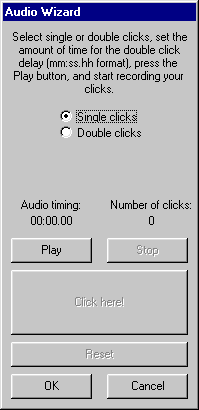
When the Audio Wizard option is selected from the Tools menu you will first be prompted to click on the column where you'd like to start recording clicks. Once that is done the Audio Wizard window will appear:
Explanation of information on the screen
Single clicks
When this option is selected each click of the mouse during audio playback will record one click.
Double clicks
When this option is selected each click of the mouse during audio playback will record two clicks. The timing of the second click is automatically calculated by adding the time value that appears in the "Double click time:" field to the actual mouse click.
Audio timing
This displays the starting time where the audio will begin playing when the Play button is clicked. During playback the time will change, matching the audio playback position.
Number of clicks
The number recorded clicks is displayed here. This will increase by either one (if the Single click option is selected) or two (if the Double click option is selected) each time the "Click here!" button is selected during audio playback.
Screen Buttons
Play button
This button starts audio playback.
Stop button
This button halts audio playback. Note that the audio doesn't rewind back to it's original position when the Stop button is selected. This allows you to click the Play button again to pick up where you left off.
"Click here!" button
This is where you would click during audio playback to record a mouse click. Each time this button is clicked the timing of the click is recorded. You do not have to double-click this button in order to record a mouse click. Single-clicks work nicely.
Reset button
This button lets you erase all recorded clicks as well as rewind the audio back to it's original position.
OK button
When clicked the Audio Wizard will close and you will see a warning notifying you that existing column timings will be overwritten. If this is OK select Yes, otherwise select No.
If there are more recorded mouse clicks than there are columns you will be asked if you wish to add columns to the grid. If you do not then only the existing columns will be filled with the new timings and all "extra" recorded clicks will be discarded.
Once all of the above questions have been dealt with all the mouse click timings the Audio Wizard recorded will be transferred to the current grid starting with the column you originally selected as your starting point.
Cancel button
When selected the Audio Wizard will close and no changes will be made to the current column timings.