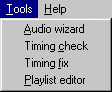
Tools Menu
Audio Wizard
After selecting this tool Dasher will prompt you to click on the column you wish to start with. Once a column is selected Dasher will open the Audio Wizard. Click here to learn more about the wizard.
Timing check
This scans all of the column timings in the grid currently open to make sure they are all linear. That is it makes sure that one column timing comes after another and not the other way around. For example, if you had a column with the timing of 01:00:00 and then the next column had a timing of 00:59.00 this would not be linear and would cause this second column to effectively be skipped during playback.
This tool scans for the column timings for just such a thing. If a problem is found the cell where the problem is located will flash, alerting one to it's location. If no problems are found this fact is reported.
Timing fix
This tool does the same thing the above Timing check tool does except that when if finds a problem it changes the problem column to be 0.1 seconds (00:00.10) greater than the last "good" column. Once the change is made it checks to make sure this change didn't affect the linearity of the column after the one it just changed. If it does then this next column is changed and then checked. This continues on down the grid until all timing problems are resolved.
If no problems are found this fact is reported and no changes are made.
Play List Editor
After selecting this tool Dasher will load the Play List Editor. Click here for more information. Once the editor is closed control is returned to the main Dasher screen so you can continue editing the current grid file.