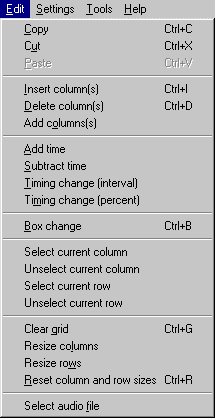
Edit Menu
General procedures for using the Copy, Cut, and Paste features
NOTE: the Dasher clipboard is not the same thing as the Windows clipboard. Thus information cannot be moved from one application to another using this method.
 that appears) to get this part of the grid on the
Dasher clipboard. Note that the highlighted area will not be
highlighted after this operation.
that appears to bypass step 9).
that appears) to get this part of the grid on the
Dasher clipboard. Note that the highlighted area will not be
highlighted after this operation.
that appears to bypass step 9).
NOTE: In all of the following instructions when you are instructed to click on a column to select it do not click on the column header row (the one that contains the timing of the column). Click instead on one of the rows below the header row.
Insert column(s) (Ctrl+I)
When selected you will be prompted by a message in the status bar to click on the column where you want the new columns to be inserted. Once this column is selected you will again be prompted by a message in the status bar to click on the where you want the last column to be inserted. Once this is done a dialog box will appear to confirm the number of columns to be inserted. If Yes is selected all the existing columns will be moved to the right and new columns will be inserted where specified.
The new columns' timing is based on the column directly to the left of where the columns were inserted. Each new column is spaced out at 00:00.05 intervals.
You may press the ESCape key or select another menu option to cancel this operation.
Delete column(s) (Ctrl+D)
When selected you will be prompted by a message in the status bar to click on the starting column to be deleted. Once this column is selected you will again be prompted by a message in the status bar to click on the ending column to be deleted. Once this is done a dialog box will appear to confirm the number of columns to be deleted. If Yes is selected all of the existing columns between the two selected columns will be deleted (including the two selected columns. Left over columns to the right of the deleted columns will be moved to the left and the grid will be shortened.
You may press the ESCape key or select another menu option to cancel this operation.
Add column(s)
Presents a box asking you to type in the number of columns you wish to add to the right end of the grid. New columns are incremented at 00:00.50 intervals based on the timing of the last column.
You may press the ESCape key to cancel this operation.
Add time
When selected you will be prompted by a message in the status bar to click on the starting column of the range of columns where you want to add time. Once this column is selected you will again be prompted by a message in the status bar to click on the ending column of the range of columns where you want to add time. Once this is done a dialog box will appear, asking you to type in an amount of time to add to the selected columns (see the Settings menu for valid time formats). Once the time is entered click OK to complete the operation.
You may press the ESCape key or select another menu option to cancel this operation.
Subtract time
When selected you will be prompted by a message in the status bar to click on the starting column of the range of columns where you want to subtract time. Once this column is selected you will again be prompted by a message in the status bar to click on the ending column of the range of columns where you want to subtract time. Once this is done a dialog box will appear, asking you to type in an amount of time to subtract from the selected columns (see the Settings menu for valid time formats). Once the time is entered click OK to complete the operation.
You may press the ESCape key or select another menu option to cancel this operation.
Timing change (interval)
When selected you will be prompted by a message in the status bar to click on the starting column of the range of columns where you want change the timings. Once this column is selected you will again be prompted by a message in the status bar to click on the ending column of the range of columns where you want to change the timings. Once this is done a dialog box will appear, asking you to type in an amount of time to increment each column within the range (see the Settings menu for valid time formats). Once the time is entered click OK to complete the operation.
You may press the ESCape key or select another menu option to cancel this operation.
Timing change (percent)
When selected you will be prompted by a message in the status bar to click on the starting column of the range of columns where you want change the timings. Once this column is selected you will again be prompted by a message in the status bar to click on the ending column of the range of columns where you want to change the timings. Once this is done a dialog box will appear, asking you to select whether you wish to add to or subtract from the existing timings and by what amount (expressed as a percentage of the existing timing). Once your choices have been made click OK to complete the operation.
You may press the ESCape key or select another menu option to cancel this operation.
Box change (Ctrl+B)
Presents a box asking you to type in the number of control boxes you have connected to the computer. Each control box you have will add 8 rows to the grid. Here you can decrease the number of control boxes (and thus rows) the grid has, keep it the same, or increase it. Keep in mind that the more control boxes you have the longer it takes various grid operations to complete. If you choose to decrease the number of control boxes, the data contained in the deleted rows is lost. If you choose to increase the number of control boxes, the additional control boxes will be added at the bottom of the grid and existing data will not be affected.
Select current column
Selects or turns on all the cells in the column in the control grid where the cursor is.
Unselect current column
Unselects or turns off all the cells in the column in the control grid where the cursor is.
Select current row
Selects or turns on all the cells in the row in the control grid where the cursor is.
Unselect current row
Unselects or turns off all the cells in the row in the control grid where the cursor is.
Clear grid (Ctrl+G)
Selecting this will clear the entire contents of the grid (does not include column timings or row label information). User confirmation is required if changes have been made and not saved.
Resize columns
Presents a dialog box asking you to type in the width you want all grid columns to have. The value presented in the dialog box is what the columns are currently set at. Enter a value and click OK to complete this operation.
Resize rows
Presents a dialog box asking you to type in the height you want all grid rows to have. The value presented in the dialog box is what the rows are currently set at. Enter a value and click OK to complete this operation.
Reset column and row sizes (Ctrl+R)
This will reset all column and row sizes to their default values.
Select audio file
Dasher opens a file selection window and allows you to select a valid audio file. Note that one can change the type of files you're looking for by changing the "File Type:" drop down box located directly under the Filename field.